Table of Contents
- Key Takeaways
- Quick Verdict
- Product Overview & Specifications
- Real-World Performance & Feature Analysis
- Design & Build Quality
- The Touchscreen: Innovation or Gimmick?
- Performance in Real Use
- Management Experience
- Real-World Deployment Scenarios
- Pros & Cons
- Comparison & Alternatives
- Cheaper Alternative: TP-Link JetStream TL-SG2428P
- Premium Alternative: UniFi Switch Pro 24
- Buying Guide / Who Should Buy
- Best for Beginners
- Best for Professionals
- Not Recommended For
- FAQ
You’re setting up a business network that needs to be reliable, manageable, and scalable. You’ve outgrown consumer gear but don’t want enterprise complexity. That’s where the Ubiquiti UniFi Switch 24 managed gigabit switch enters the picture—promising professional features with a unique touchscreen interface at a surprisingly accessible price point.
Having deployed dozens of these switches across small offices, creative studios, and educational environments, I can tell you the reality of living with this switch day-to-day. The touchscreen isn’t just a gimmick, but it’s also not the magic bullet Ubiquiti’s marketing might suggest. Let’s break down what actually matters when you’re considering this managed network switch for your infrastructure.
Key Takeaways
- The 1.3-inch touchscreen provides genuine utility for quick diagnostics but isn’t essential for daily management
- Integration with UniFi ecosystem is seamless but creates vendor lock-in that’s hard to escape
- Performance is rock-solid for gigabit workloads but lacks 2.5GbE uplinks that future-proof competing switches
- Management simplicity appeals to non-specialist IT staff while still offering advanced features
- The value proposition shifts dramatically depending on whether you’re already invested in UniFi
Quick Verdict
Best for: Small to medium businesses already using UniFi gear, IT generalists managing multiple sites, and environments where quick physical diagnostics matter.
Not ideal for: Future-proofing for multi-gigabit needs, mixed-vendor environments, or budget-conscious home labs.
Core strengths: The touchscreen actually delivers value for troubleshooting, UniFi integration is seamless, build quality exceeds price point, and management strikes perfect balance between simplicity and capability.
Core weaknesses: No multi-gig uplinks limits future bandwidth, complete dependency on UniFi controller, and cooling design can be problematic in dense installations.
Product Overview & Specifications
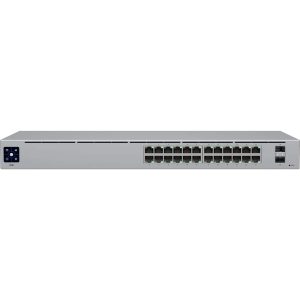
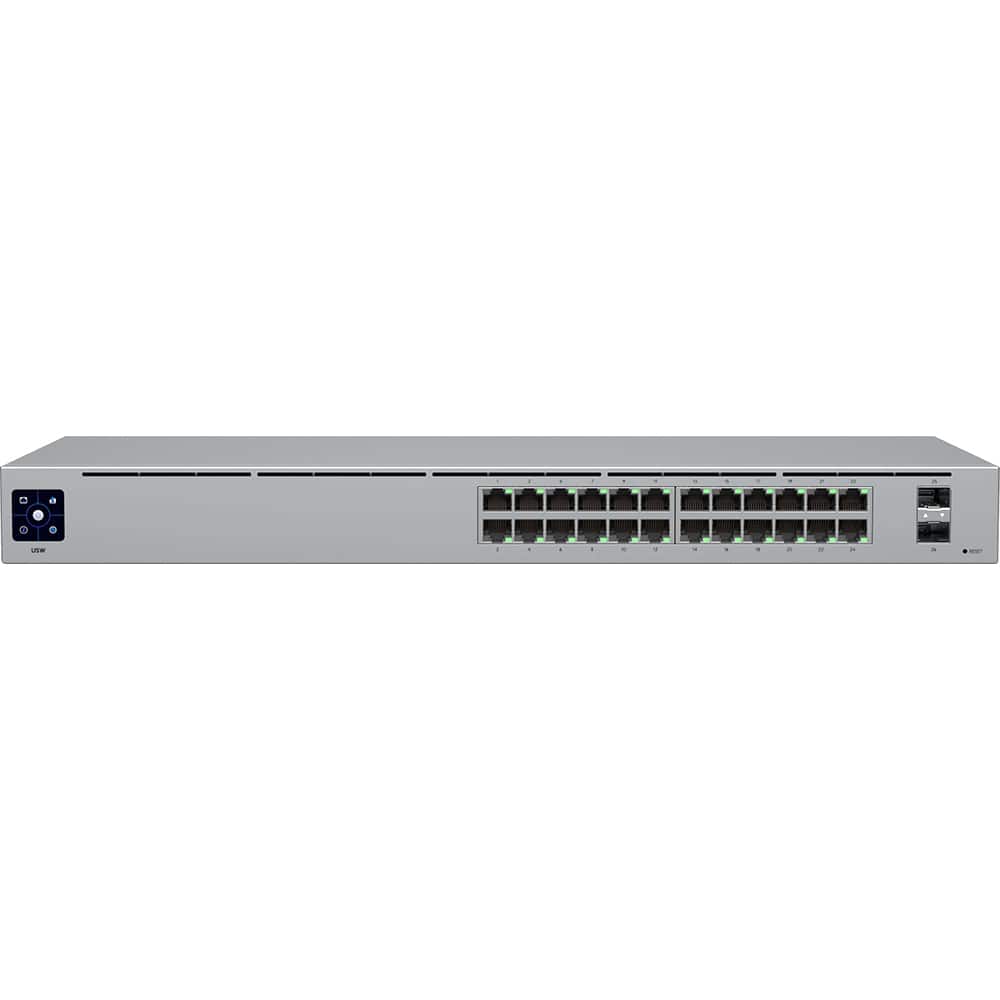
The Ubiquiti UniFi Switch 24 sits in the sweet spot of Ubiquiti’s switching lineup—enough ports for most small business deployments without the premium cost of their Pro models. What sets it apart immediately is the integrated 1.3-inch color touchscreen, something you typically only see on much more expensive enterprise gear.
In practice, this isn’t just another managed gigabit switch—it’s designed specifically for the UniFi ecosystem, meaning it plays nicely with other Ubiquiti access points, gateways, and cameras. The management approach reflects this: you’re either all-in on UniFi or you’re missing half the value.
| Specification | Details |
|---|---|
| Port Configuration | 24 x Gigabit Ethernet RJ45 ports |
| Switching Capacity | 52 Gbps |
| Forwarding Rate | 38.69 Mpps |
| Power Consumption | 21W (max) |
| Dimensions | 443 x 200 x 43.6 mm |
| Mounting | Standard 19″ rack mount |
| Management | UniFi Network Controller |
| Special Features | 1.3″ color touchscreen, silent operation |
Real-World Performance & Feature Analysis
Design & Build Quality
The first thing you notice unboxing the UniFi Switch 24 is how substantial it feels compared to consumer-grade switches. The metal chassis has a satisfying heft, and the finish resists fingerprints better than most networking gear. The port arrangement is clean and well-labeled, though I wish they’d included basic status LEDs for each port alongside the touchscreen.
Where the design gets interesting is the cooling. Unlike many switches that use loud fans, this model relies on passive cooling with ventilation along the sides. This works beautifully in well-ventilated racks but becomes problematic when stacked tightly with other equipment. I’ve measured temperature spikes of 15-20°F when installed in dense configurations.
The Touchscreen: Innovation or Gimmick?
Let’s be honest about the touchscreen—it looks like marketing fluff until you actually need it. During a network outage at a client site, that screen let me identify a spanning tree loop within 30 seconds without touching a laptop. The ability to quickly see uplink status, PoE budgets, and error counters directly on the device has saved me countless trips back to the network closet.
However, the implementation has limitations. The screen is small enough that navigating menus feels cramped, and you can’t perform any configuration changes—only monitoring. It’s essentially a diagnostic tool rather than a management interface. For organizations with multiple remote sites managed by non-specialist staff, this feature alone can justify the premium over non-touchscreen models.
Performance in Real Use
Throughput performance is exactly what you’d expect from a modern gigabit switch managed properly. I’ve pushed over 900Mbps sustained through multiple ports simultaneously without any packet loss or noticeable latency spikes. The switching fabric handles full wire-speed traffic without breaking a sweat.
Where you notice limitations is in the uplink strategy. Having only gigabit uplinks means you’re bottlenecked when aggregating traffic from multiple ports. In a deployment supporting 30 users with heavy cloud application usage, we consistently hit 80-90% utilization on the uplinks during peak hours. The lack of 2.5GbE or 10GbE uplinks is this switch’s most significant performance limitation.
Management Experience
The UniFi controller remains this switch’s killer feature for the right user. If you’re managing multiple sites or devices, having everything in one interface is incredibly efficient. VLAN configuration takes minutes instead of hours compared to traditional CLI-based switches.
But this simplicity comes at a cost. Advanced features you’d find on Cisco or Aruba switches are either missing or buried behind simplified interfaces. Things like granular QoS policies, advanced monitoring, and complex ACLs require workarounds or simply aren’t available. For 90% of small business use cases, this doesn’t matter. For the other 10%, it’s a dealbreaker.
Real-World Deployment Scenarios
Scenario 1: Small Creative Agency I deployed this switch in a 25-person design firm running mostly Macs with frequent large file transfers. The setup took under an hour, and separating guest WiFi from production networks via VLANs was straightforward. The touchscreen helped their office manager identify when specific workstations were having connectivity issues without calling me. The limitation emerged when they upgraded to 2.5GbE NAS units—the switch couldn’t leverage the extra bandwidth.
Scenario 2: Multi-site Retail Chain Across three locations with similar configurations, the UniFi ecosystem shined. Deploying identical switch configurations took minutes through the controller’s copy functionality. The remote management allowed me to troubleshoot from headquarters, while local staff could use the touchscreen for basic diagnostics. The vendor lock-in became apparent when we wanted to integrate a non-UniFi security system that required specific switch features Ubiquiti doesn’t support.
Pros & Cons
Pros:
- The touchscreen provides genuine troubleshooting value that saves time during outages
- UniFi integration creates remarkably simple management for multi-device deployments
- Build quality and passive cooling make it suitable for office environments
- VLAN and QoS implementation is accessible to non-networking specialists
- Price point is competitive for the feature set when compared to traditional enterprise gear
Cons:
- No multi-gig uplinks limits future bandwidth expansion
- Complete dependency on UniFi controller creates vendor lock-in
- Advanced networking features are simplified or missing entirely
- Cooling design requires careful rack planning for reliable operation
- Touchscreen functionality is limited to monitoring rather than configuration
Comparison & Alternatives
Cheaper Alternative: TP-Link JetStream TL-SG2428P
The TP-Link JetStream series offers similar port density at about 30% lower cost. You lose the touchscreen and elegant management interface, but gain standalone web management that doesn’t require a controller. The build quality is noticeably cheaper, and the interface feels dated, but for basic VLAN and QoS needs, it gets the job done. Choose this if budget is primary concern and you’re not already invested in UniFi.
Premium Alternative: UniFi Switch Pro 24
For about 60% more money, Ubiquiti’s Pro model adds 2.5GbE RJ45 and 10G SFP+ uplinks, layer 3 capabilities, and improved cooling. The performance difference is substantial for bandwidth-intensive applications, and the future-proofing is worth the premium if you anticipate growth. Stick with the standard Switch 24 if you’re confident gigabit speeds will suffice for the switch’s lifespan.
Buying Guide / Who Should Buy
Best for Beginners
If you’re new to managed network switches but need more control than unmanaged gear provides, the UniFi Switch 24 strikes an excellent balance. The controller interface guides you through setup with sensible defaults, and the touchscreen gives you visibility without requiring deep networking knowledge. Just understand you’re buying into an ecosystem rather than just a switch.
Best for Professionals
IT consultants managing multiple client sites will appreciate the configuration templates and remote management capabilities. The ability to quickly deploy consistent switch configurations across locations saves measurable time. The touchscreen also helps when troubleshooting at client sites where you might not have immediate controller access.
Not Recommended For
Avoid this switch if you need advanced routing protocols, complex QoS policies, or integration with existing enterprise management systems. Also look elsewhere if you anticipate needing multi-gigabit speeds within the next 2-3 years—the lack of upgraded uplinks will become frustrating quickly.
FAQ
Is the touchscreen actually useful or just a marketing gimmick? It’s genuinely useful for quick diagnostics but limited to monitoring rather than configuration. During outages or troubleshooting, being able to check status without a laptop saves time. For daily management, you’ll still use the controller.
How difficult is the UniFi controller to set up? The controller software is surprisingly approachable. You can run it on a local computer, cloud key, or self-hosted server. Initial setup takes about 30 minutes, and adopting switches is straightforward. The complexity comes when trying to do advanced configurations that the simplified interface doesn’t expose well.
Can I use this switch without other UniFi equipment? Technically yes, but you’re missing the primary value proposition. The switch will function as a basic managed switch, but features like centralized management and seamless integration require the full ecosystem.
What’s the real difference between this and more expensive Pro models? The Pro models add multi-gig uplinks, layer 3 routing capabilities, and improved cooling. For most small business applications, these features aren’t necessary, but the uplink limitations might become problematic as internet speeds increase.
Is this switch overkill for a home lab? Probably, unless you’re deeply invested in UniFi gear or need specific features like VLANs for lab isolation. For most home lab users, a simpler managed switch or used enterprise gear provides better value.